Every guide to cheap USDT transfers ends the same way: get TRON Energy before you send. The question people actually type into search is more specific — how do I do that in my wallet? In TronLink? In Trust Wallet? On a Ledger?
Good news: the answer is nearly identical everywhere, because of one fact about how TRON works. This guide covers that fact first, then walks through the most popular non-custodial wallets one by one, with the exact steps for each.
The one idea that makes every wallet work: Energy belongs to the address
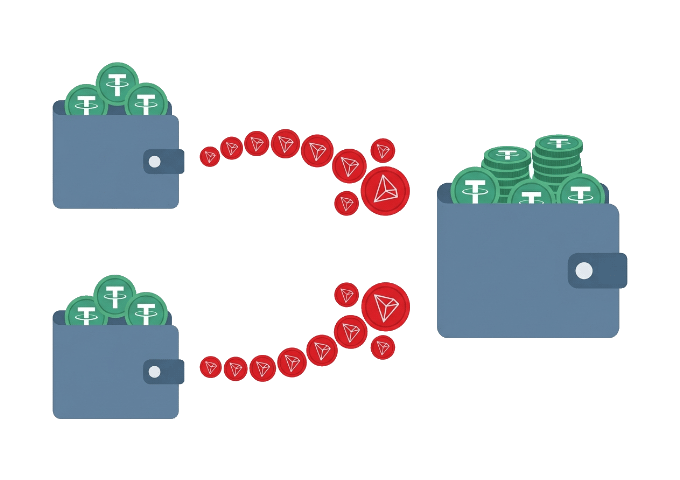
TRON Energy is not a token and it doesn't live inside an app. It's a resource attached to your TRON address — the string starting with T — recorded directly on the blockchain. When a rental service like TronZap delegates Energy to you, that delegation is an on-chain transaction pointed at your address. Whatever app you use to view that address afterwards will spend the Energy automatically on your next USDT (TRC-20) transfer.
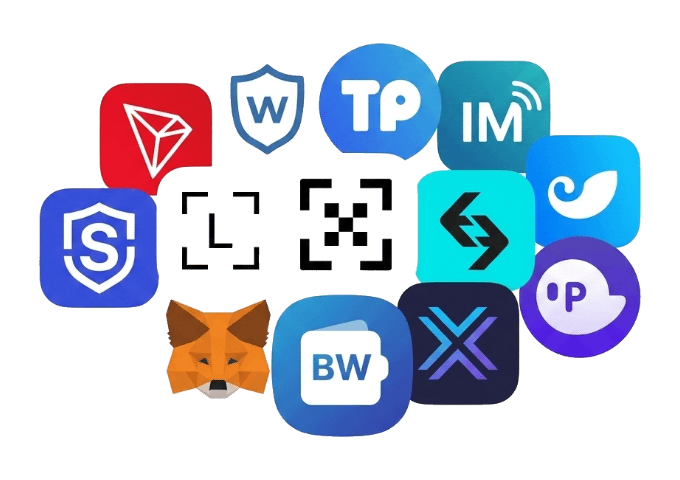
Your wallet, in other words, is just a window. TronLink, Trust Wallet, TokenPocket, imToken, SafePal, Ledger, OKX Wallet, Bitget Wallet, MetaMask, Exodus, Phantom — they all display and sign for the same kind of address, so they all "support" rented Energy by default.
There's nothing to install, no setting to flip, and no wallet connection to approve. The rental service never needs anything beyond your public address. If any site asks for a seed phrase to "deliver Energy," close it — that's a scam, not a rental.
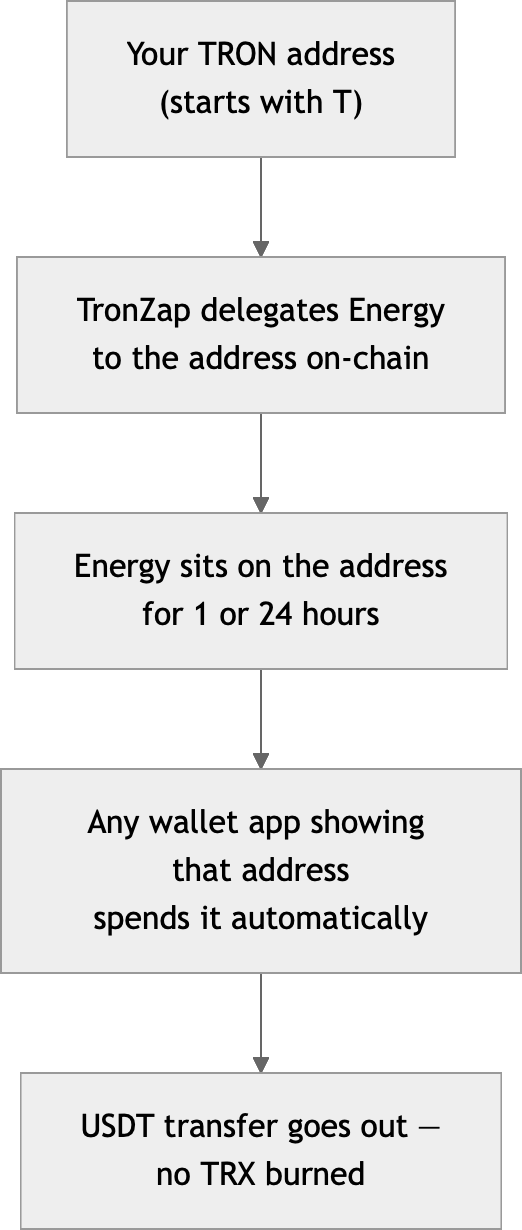
The universal three-step flow
Whatever wallet you hold, renting Energy comes down to this:
- Copy your TRON address from the wallet (tap the address or the Receive button on the TRX or USDT asset).
- Buy the Energy on TronZap — through the @tronzap_bot (top up once, then a few taps per purchase), through the quick trx energy rental address on TronZap.com (send mentioned TRX from the wallet, Energy comes back automatically), or through the dashboard if you have an account. Take ~65,000 Energy for a recipient who already holds USDT, ~131,000 to be safe with anyone.
- Send your USDT from the wallet as usual. The delegated Energy covers the fee, and no TRX gets burned.
Delivery takes seconds, and the delegation lasts 1 or 24 hours depending on what you pick. Now the wallet-by-wallet specifics.
TronLink
TronLink is the go-to wallet of the TRON ecosystem — a browser extension and a mobile app — and it puts the resource system front and center. Open your account and you'll see Energy and Bandwidth counters in the Resources section. After a TronZap purchase, the Energy figure updates within moments, so you get instant visual confirmation.
- Tap your account name or address at the top to copy the T-address.
- Rent Energy for it on TronZap (bot or website).
- Watch Resources tick up, then send USDT. If you're diagnosing an
OUT_OF_ENERGYerror in TronLink, this is also the screen that tells you the story — a near-zero Energy figure is the smoking gun.
Trust Wallet
Trust Wallet handles TRON and TRC-20 USDT smoothly, but doesn't put the resource meters on the main wallet screen. They live a level deeper: since Trust Wallet expanded its TRON support, you can track Energy and Bandwidth balances inside the TRON wallet's Resources view, and the transfer confirmation screen shows a fee discount when your Energy covers the cost. Either way, delegated Energy is spent automatically — the app uses whatever the address holds.
- Open the TRX or USDT (TRC20) asset, tap Receive, and copy the address.
- Buy the Energy on TronZap for that address.
- Check the Resources view — or paste your address into TronScan — then send your USDT. The confirmation screen will reflect the covered fee.
TokenPocket
TokenPocket has deep TRON roots and, like TronLink, displays both Energy and Bandwidth right on the TRON account page. That makes it a comfortable home for anyone renting regularly — you always see what you have left.
- Select your TRON account, copy the address.
- Rent on TronZap. For frequent transfers, the Telegram bot with a pre-funded balance is the fastest loop.
- Check the resource figures on the account page, then transfer USDT with the fee fully covered.
imToken
imToken shows TRON's two resources on the TRX asset detail page, along with your daily free Bandwidth. Its own help center walks through the Energy/Bandwidth model in detail, so the concepts won't surprise you — and a TronZap rental lands straight on the address imToken displays.
- Open the TRX asset, copy your address from the Receive screen.
- Buy 65,000–131,000 Energy on TronZap.
- Confirm the numbers on the asset page and send your USDT (TRC-20) without touching your TRX balance.
SafePal
SafePal pairs a mobile app with optional hardware devices, and both work with rented Energy the same way — the resource attaches to the address, not the device. The app doesn't put an Energy counter front and center, so TronScan is your verification tool of choice.
- In the SafePal app, open your TRON wallet and copy the receiving address.
- Rent the Energy on TronZap for that address.
- Verify on TronScan if you like, then sign the USDT transfer as usual — on the hardware device if you use one.
Ledger
A Ledger doesn't change the math either: the device guards the private key, but the address it controls is a normal TRON address. Whether you operate it through Ledger Live or connect it to the TronLink extension, delegated Energy on that address gets spent like anywhere else.
- Find your TRON account address in Ledger Live (or in TronLink with the Ledger connected) and copy it.
- Buy Energy on TronZap for the address. If you use the quick rental option, send the TRX from the Ledger-controlled address itself, confirming on the device — the Energy is delegated back to the sender.
- Send USDT and approve on the device. Fee: covered by the delegation, zero TRX burned.
OKX Wallet
OKX Wallet is the self-custody side of the OKX ecosystem — a standalone app and browser extension where you hold the keys, separate from an OKX exchange account. TRC-20 USDT is a native asset there, and the wallet warns you clearly when Energy is insufficient, so you'll know the rental landed the moment the warning disappears.
One distinction matters more here than anywhere else: rent Energy for your OKX Wallet (Web3) address, never for an OKX exchange deposit address. Exchange addresses are pooled and rotated — Energy delegated to one will never be spent on your transfer.
- Switch to the TRON network in OKX Wallet and copy your T-address.
- Buy the Energy on TronZap for that address.
- Send USDT (TRC-20) as usual — the delegation covers the fee. Verify on TronScan if you want a second opinion.
Bitget Wallet
Bitget Wallet (formerly BitKeep) is a multi-chain wallet where TRON holds one of the key positions, with TRC-20 USDT supported natively. The fee line on the transfer confirmation screen shows what the transaction will cost — with rented Energy sitting on the address, that cost collapses to the free-Bandwidth case. It also pairs with Ledger and Keystone hardware, and the address-not-app rule holds there too.
- Open your TRON wallet in Bitget Wallet and copy the address.
- Rent the Energy on TronZap — the Telegram bot is the fastest loop for repeat transfers.
- Watch the fee line on the confirm screen, then send your USDT.
MetaMask
Yes, MetaMask — it now supports TRON natively, so TRX and TRC-20 USDT live alongside your Ethereum assets. MetaMask follows the same resource model: transactions consume Bandwidth and Energy, and if the account lacks them, TRX gets burned instead. Rented Energy on the address prevents exactly that burn.
One MetaMask-specific caveat: a freshly created TRON account inside MetaMask must be activated before it can transact — send a small amount of TRX to it first. Receiving USDT alone does not activate the account, and MetaMask recommends keeping a small TRX balance so it stays active.
- Open the TRON network in MetaMask and copy your T-address.
- Activate the address with a small TRX transfer if it's brand new, then rent the Energy on TronZap.
- Send USDT (TRC-20) — the delegated Energy is spent automatically, no TRX burned.
Exodus
Exodus (desktop and mobile) reads the address's resources and applies them automatically: if your Bandwidth and Energy cover the transfer, Exodus pays the fee with those resources instead of TRX. The verification is built into the send flow — on desktop, the network fee shows as 0 TRX when resources cover it, and the mobile app estimates how many free sends your current resources allow.
- Open your TRX or USDT (TRC20) asset in Exodus and copy the receive address.
- Buy the Energy on TronZap for that address.
- Open the send screen — a 0 TRX network fee is your confirmation — and send the USDT.
Phantom
Phantom, long a Solana-first wallet, added TRON support alongside its other chains, and TRC-20 USDT works there with the same clean UX. Resource meters aren't the app's focus, so treat TronScan as your Energy dashboard.
- Switch to your TRON account in Phantom and copy the address.
- Rent the Energy on TronZap.
- Check the address on TronScan if you want confirmation, then send your USDT as usual.
Five mistakes that cost people money
- Sending the quick-rental TRX from an exchange. The quick rental delegates Energy back to the sending address. Send from Binance and the Energy lands on Binance's hot wallet, not yours. Always send from the wallet you want fueled — or use the bot/dashboard, where you paste the address explicitly.
- Renting Energy for an exchange deposit address. Deposit addresses at Binance, OKX, Bybit and the rest are pooled and managed by the exchange — Energy delegated there will never be used for your withdrawal. Rent only for addresses you control in a self-custodial wallet.
- Sending anything except TRX to the quick-rental address. It accepts only TRX — other tokens sent there can be lost.
- Renting 65,000 for a first-time USDT recipient. A fresh recipient doubles the requirement to ~131,000 Energy. When in doubt, use the Estimate Energy tool on tronzap.com or just take 131,000.
- Letting the delegation expire. Energy is rented for 1 or 24 hours. Buy it when you're ready to send — or put the address on a TRON Energy Subscription and keep it topped up around the clock.
Cheat sheet
| Wallet | Where you'll see the Energy | Handiest TronZap channel |
|---|---|---|
| TronLink | Resources section, in-app | Bot or quick rental |
| Trust Wallet | Resources view in the TRON wallet, or TronScan | Telegram bot |
| TokenPocket | TRON account page, in-app | Telegram bot |
| imToken | TRX asset detail page, in-app | Bot or quick rental |
| SafePal | TRON wallet settings, or TronScan | Telegram bot |
| Ledger | Via TronLink or TronScan | Quick rental from the device's address |
| OKX Wallet | Insufficient-Energy warning disappears, or TronScan | Telegram bot |
| Bitget Wallet | Fee line on the confirm screen, or TronScan | Telegram bot |
| MetaMask | TronScan | Bot or quick rental |
| Exodus | Send screen — 0 TRX fee when covered | Telegram bot |
| Phantom | TronScan | Telegram bot |
The bottom line
There is no special integration, plugin, or "supported wallet list" for TRON Energy rental — Energy is a property of your address, so it works in TronLink, Trust Wallet, TokenPocket, imToken, SafePal, Ledger, OKX Wallet, Bitget Wallet, MetaMask, Exodus, Phantom, and anything else that signs TRON transactions.
The routine is the same everywhere: copy the address, Rent TRX Energy through the Telegram bot or the website, send the USDT.
One minute of prep, and the fee your wallet would have burned in TRX stays in your pocket.
Authors
Written by: Marc Wei — Blockchain Payments Engineer
Reviewed by: Aren Skovarr — TRON Architect, Researcher and CEX Strategist
Marc and Aren live and breathe the TRON ecosystem. They audit smart contracts, design staking and resource strategies, and put TRON energy to work across real business cases — payments, exchanges, iGaming.
As advisors at TronZap, they help users and businesses move digital assets the smart way.
Back